Chrome 插件 Options Page:实现设置页
用户在使用软件时,使用习惯各有不同。如果能够提供一个让用户自由设置的功能,能使软件的体验更加友好。
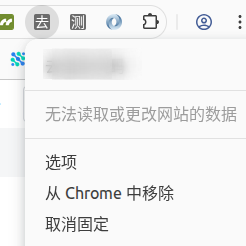
Chrome 插件开发不需要太担心这个问题,官方提供了相关实现及文档。根据官方文档,我们可以配置一个插件的 “Options”,文档地址 Options Page。
“查看 commit 的文件列表”这个功能需要支持自由配置:是否启用。对这个功能有需求的用户就可以开启,否则就可以关闭;强制弹出等于硬塞给用户,体验很不友好。这个时候需要一个开关来控制是否启用这个功能。
设置要么跟用户走,要么跟设备走;下次打开页面,上次的状态需要能够被恢复。需要永久存储我们的配置(在不被删除的情况下),有两种解决方案:
- 自己实现两个接口,一个保存配置,另一个是获取配置。
- 使用 Chrome 的 API
chrome.storage.sync,调用 set/get 方法设置、获取我们的配置。
manifest.json 配置 Options
官方提供两种配置方案,第一种是打开一个新的页面。
{
  "name": "My extension",
  ...
  "options_page": "options.html",
  ...
}
第二种是嵌入式,在当前页面以弹窗的形式展示设置页。
{
  "name": "My extension",
  ...
  "options_ui": {
    "page": "options.html",
    "open_in_tab": false
  },
  ...
}
实现 Options.html
Options.html 没有什么规范,和平时的页面编写没什么区别。
<!DOCTYPE html>
<html>
  <head>
    <meta charset="UTF-8" />
    <meta name="viewport" content="width=device-width, initial-scale=1.0" />
    <title>Options</title>
  </head>

  <style>
    html,body {margin:0;padding:0;height:100%;}
    .container {display:flex;height:100vh;}
    .left-container {flex:1;background-color:#f0f0f0;}
    .right-container {flex:8;background-color:#ffffff;padding:10px;}
    h2 {text-align:center;}
    ul {list-style-type:none;padding:0;text-align:center;}
    li {padding:10px;border-bottom:1px solid #ccc;font-size:16px;}
    a {text-decoration:none;color:#333;}
    a:hover {text-decoration:underline;}
    .panel {display:none;}
    .panel.active {display:block;}
    label {cursor:pointer;}
    .panel p {font-size:14px;}
  </style>
  <body>
    <div class="container">
        <div class="left-container">
            <h2>设置</h2>
            <ul>
                <li><a href="#show-diff-file" id="show-diff-file">查看 diff 文件</a></li>
            </ul>
        </div>
        <div class="right-container">
            <div class="panel active" data-id="show-diff-file">
                <h2>查看 diff 文件</h2>
                <p>启用此选项后,您可以在侧边栏中查看文件的差异。</p>
                <label>
                    <input type="checkbox" id="enable-diff-file">
                    启用查看 diff 文件功能
                </label>
            </div>
        </div>
    </div>

    <script src="options.js"></script>
  </body>
</html>

实现 options.js 存储和获取配置
为了快速实现这个简单的需求,这里使用 Chrome 的 API 来存储配置。但在使用 API 前,需要在清单里声明存储权限 storage。
{
  "name": "My extension",
  ...
  "permissions": [
    "storage"
  ]
  ...
}
options.js 没有什么特殊规范:实现两个方法(保存配置、恢复配置);在 DOMContentLoaded 时加载配置,并为 checkbox 添加点击事件以保存配置。
// Saves options to chrome.storage
const saveOptions = () => {
  const enableShowDiffFile = document.getElementById('enable-diff-file').checked;

  chrome.storage.sync.set(
    { enableShowDiffFile: enableShowDiffFile },
    () => {
        console.log('Options saved.');
    }
  );
};

// stored in chrome.storage.
const restoreOptions = () => {
  chrome.storage.sync.get(
    { enableShowDiffFile: true },
    (items) => {
      document.getElementById('enable-diff-file').checked = items.enableShowDiffFile;
    }
  );
};

document.addEventListener('DOMContentLoaded', restoreOptions);
document.getElementById('enable-diff-file').addEventListener('click', saveOptions);
在入口处使用配置,控制查看 commit 的文件列表
通过 chrome.storage.sync.get 获取 enableShowDiffFile 的值,如果为 true,则执行 commit 文件列表展示的功能,否则不显示。默认开启这个功能。
if (isGitlab) {
    chrome.storage.sync.get(
        { enableShowDiffFile: true },
        (items) => {
            if (!items.enableShowDiffFile) {
                return;
            }
            let timerFindCommitTimer = setTimeout(() => {
                findCommitFiles();
                timerFindCommitTimer = null;
            }, 1000);
        }
    );
}
总结
- 首先拿到这个需求时,并不知道该如何下手,通过搜索一番找到了解决方案,如果我熟读或者浏览过官方文档,便没有了之前的焦虑
- 这个插件功能的实现比较流畅,借助官方的 demo,使得我很快上手,实现一个小的需求